
Nonprofit Design with Canva: Reports, Emails and Websites
This guide is for communications coordinators, program managers and executive directors at small nonprofits who produce their own reports, emails and web pages in Canva. Design is rarely the hard part. The harder problems are underneath: an impact page that mixes attendance with change, a newsletter exported as one image that some readers cannot read or click, a website that looks good but cannot answer a funder’s first question about where the money goes.
Each section below covers one type of material and the method that makes it trustworthy. The rules apply whether you use a template or start from a blank page, and they work on a free Canva account. Where numbers appear, they are sample figures from template files, used to show the structure.
Get Canva access sorted first
Many registered charities can apply for Canva for Nonprofits, which offers Canva Pro free to eligible organizations. The details below reflect the program at the time of writing; check the program’s current terms before you apply, because eligibility rules and processes change.
Communications leads often treat a rejected application as a final no. It usually is not. At the time of writing, Canva states there is no penalty for resubmitting with corrected information. Its validation partner, Goodstack, may email you or the address listed on your website, and a request left unanswered can expire and show up as a rejection, so watch both inboxes after applying.
Another frequent misunderstanding concerns the word “foundation.” Canva excludes grantmaking and private foundations. A charity that runs its own programs under a legal form called a foundation in its country is a different case, so describe those programs plainly in the application.
Before reapplying, check four things: the legal name is identical on the form, your documents and your website; you apply from an email address on your organization’s domain; a signed document names you and your role; and bank statements are the original PDF, not a scan. The Canva Pro for Nonprofits guide walks through each rejection reason and its fix.
The same pattern applies to other nonprofit technology programs. Rejections usually point to a fixable file: no online footprint, a name that differs between documents, a personal email address, blurry scans, or a generic description. Ask which criterion was not met, fix the file, and wait two to four weeks before reapplying. The Nonprofit Tech Grant Guide covers that process across several providers. None of this guarantees approval, which belongs to the program and its validation partner.
Keep outputs and outcomes apart on every impact page
Program managers often put attendance and change in one sentence, and readers take both as results. Two words are worth separating. Outputs are what you delivered and who took part: sessions held, families reached, kits delivered. Outcomes are what changed for those people: knowledge, behavior, a condition.
A rule of thumb: if you could count the number on the day of the activity, it is an output. An outcome needs a baseline or a survey, and it should travel with its method, sample and period. In the sample planner of the Impact One-Pager Bundle, “325 people took part” sits apart from “81% reported more confidence.” Kept apart and labeled, the answer to “how do you know?” is already on the page when a board member or funder asks.
Two habits keep a one-pager honest. Record each figure’s period and source before it goes into the design, and never let an unverified number become the headline. And if you have no outcome data this year, say so with a layout built for outputs, rather than stretching an attendance count into a claim about change.
Build annual reports around evidence
An annual report gathers a year of these numbers in one place, so the output and outcome distinction matters even more. Label both types as what they are. For each number, say how it was counted and where it came from, and keep your counting definitions on the page, in a footnote or a short methods box.
A metric is only useful in a report if four things are known about it: a definition, how it is measured, a typical source, and a caution about what it cannot show. Write those down before choosing which metrics to feature. The Annual Impact Report Kit includes 108 impact metrics in five sector menus, each with those four fields, and puts guidance on the evidence each page needs into the Canva Notes.
Two production details save rework. Decide on paper size early: US Letter for American audiences, A4 for most others, and keep both versions if you send internationally. And replace every sample figure, quote and name in a template before anyone outside the team sees a draft.
Send newsletters people can read
Exporting a whole newsletter from Canva as one image is tempting, because it looks exactly as designed. The problems arrive in the inbox. Email apps can block images, so some readers see a blank message. Screen readers cannot read text inside a picture. And a picture of a button is not a link. A hybrid build avoids all three:
- Export only the graphics from Canva: header, photo, chart.
- Type the headline and body as live text in your email platform.
- Make every button a real link, not an image of a button.
- Add alt text to each image.
- Send a test to a phone before sending to the list.
The email then looks designed and still works for every reader. Canva itself does not send email, so you build the final message in the platform you already use. Planning matters as much as layout. Keep a content queue that moves each piece from idea to sent, and a results log where blank results stay blank instead of being filled with guesses. The Nonprofit Newsletter Kit is built for this method, with 52 email layouts and an Excel planner.
Give your website a trust section
Before a funder signs, someone on their side may open your website and ask a plain question: where does the money go, and who checks? A trust section answers it before it is asked. A useful one covers five things.
| Element | What to show |
|---|---|
| Legal registration | Your registered name and registration number |
| Use of funds | A short breakdown of where money goes |
| Accounts and reports | Links to your latest accounts and annual report |
| Standards | The policies and standards you follow |
| Partners | Organizations that already back you |
Keep each claim to something you can show a document for, and label last year’s figures as last year’s. Photos deserve the same care: confirm consent before any image of a person goes live, and apply a dignity check to photos of children and people receiving help. The Nonprofit Website Bundle has this section built into each of its five site templates, together with a photo consent and safeguarding checklist.
Know the limits of a Canva website before you commit. Canva sites cannot be moved to WordPress, Wix or Squarespace, and they do not take payments, so your Donate button should link to the giving page you already use.
Faith-based giving pages need policy, not template text
Religious organizations face a particular version of the trust question. Many zakat donors, for example, want to see their zakat kept apart from general giving, and a single Donate button cannot show them that. Before a zakat, sadaqah or waqf page goes live, check that each type of giving has its own section and its own link, and that your payment provider and accounts really keep the money separate if the site says so.
Rules about eligibility, rates and terms should come from your written policy and the scholars you rely on, never from a template. Phrases such as “Shariah-compliant” should appear only if you can show the document behind them. The Islamic Charity Websites bundle marks every religious and financial line as a placeholder for your own policy and includes no rulings or zakat calculations. The same principle applies to church stewardship pages or any giving page that makes a promise about how money is handled.
Tools that help
- Canva Pro for Nonprofits: a PDF guide to eligibility, what Goodstack checks, each rejection reason with its fix, and a 30-day setup plan.
- Nonprofit Tech Grant Guide: a 213-page book mapping Google, Microsoft, Canva and smaller nonprofit programs, with a chapter on fixing rejected applications.
- Impact One-Pager Bundle: 25 one-page Canva designs plus an Excel planner that keeps outputs and outcomes apart and records each figure’s source.
- Annual Impact Report Kit: six report kits with 108 defined impact metrics, in US Letter and A4.
- Nonprofit Newsletter Kit: 52 email layouts, a block library and a 12-month planner designed for hybrid email builds.
- Nonprofit Website Bundle: five Canva website templates with a trust section, an editable copy document and a consent checklist.
- Islamic Charity Websites: five Canva website templates for masjid, zakat, waqf, relief and school pages, with policy placeholders and a content checklist.
- Organization Profile Bundle: 21 Canva profile, capability statement and partner brief templates, plus an Excel workbook that flags unsourced metrics and stories without consent.
Where to start
Good nonprofit design is mostly honest structure made readable. Separate outputs from outcomes, give every number a source, build emails that work without images, and give your website a section that answers the money question before a funder asks it. Canva handles the layout. The credibility comes from what you put on the page and what you can show behind it.
Tools mentioned in this guide
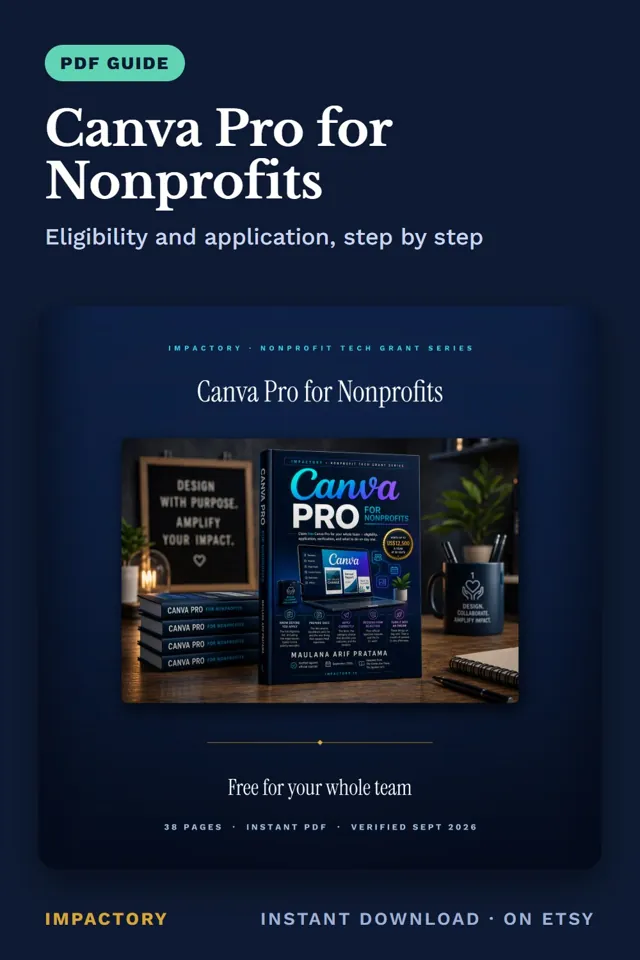
Canva Pro for Nonprofits
PDF guideCommunications leads at registered charities often treat a rejected Canva for Nonprofits application as a final no.
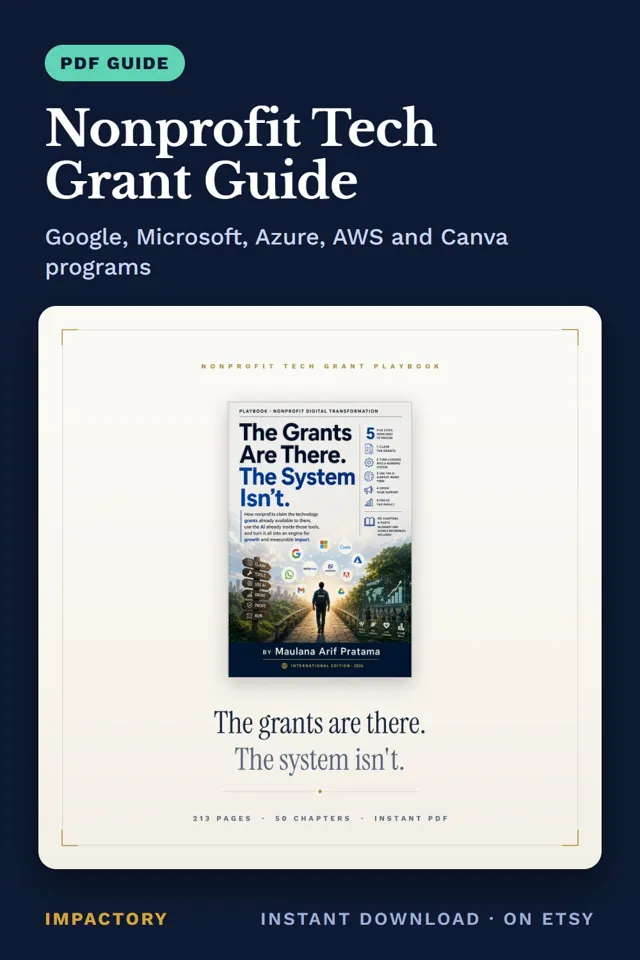
Nonprofit Tech Grant Guide
PDF guideRejection emails from nonprofit tech programs usually point to a fixable file, not an organization that doesn't qualify.
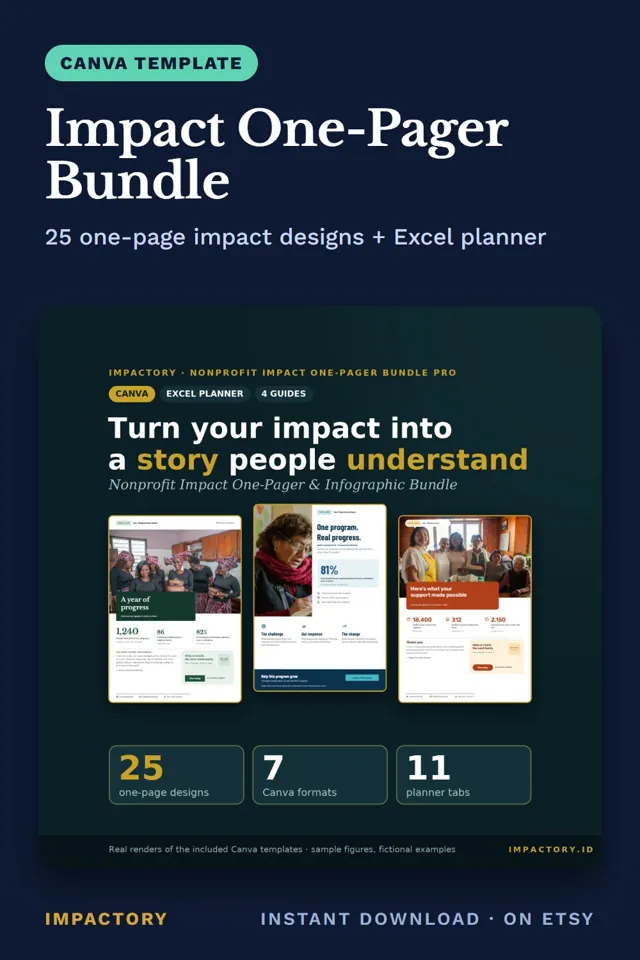
Impact One-Pager Bundle
Canva templateProgram managers often put attendance and change in one sentence on an impact page, and readers take both as results.
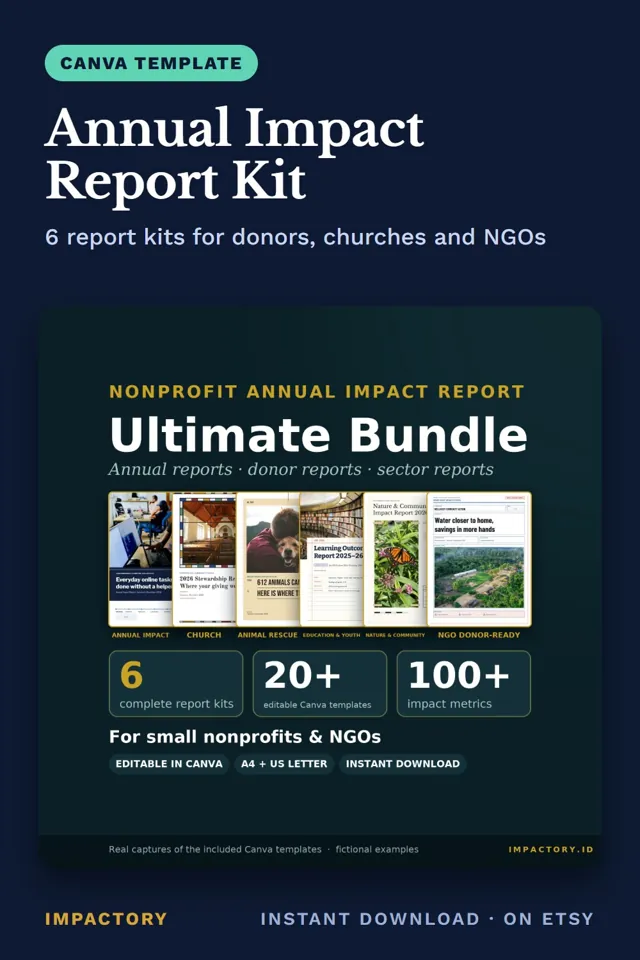
Annual Impact Report Kit
Canva templateProgram managers writing an annual report often fill the impact page with attendance counts, and careful funders notice.
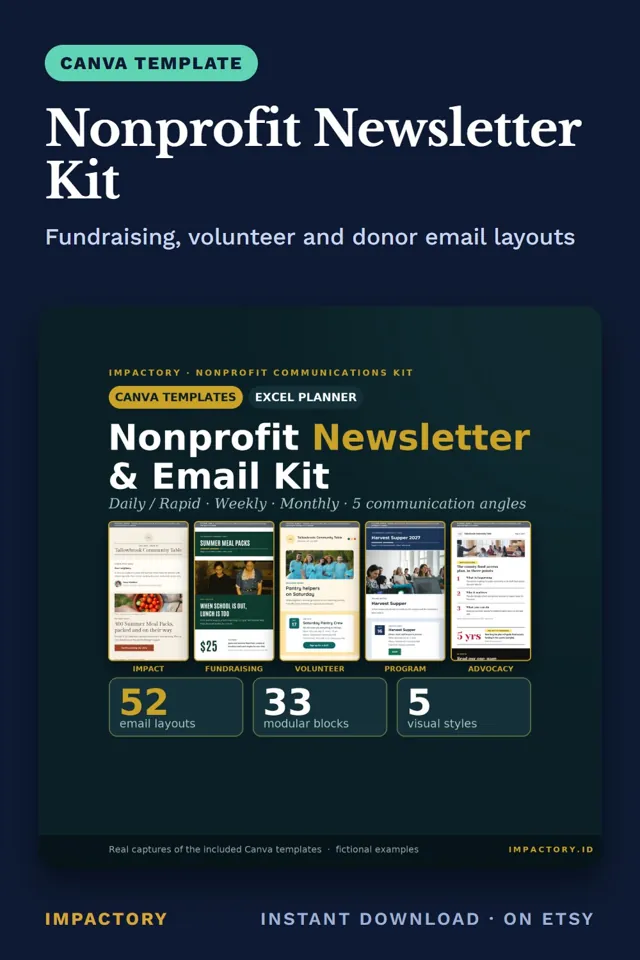
Nonprofit Newsletter Kit
Canva templateCommunications coordinators who export a whole newsletter as one Canva image send emails that some readers can't read or click.
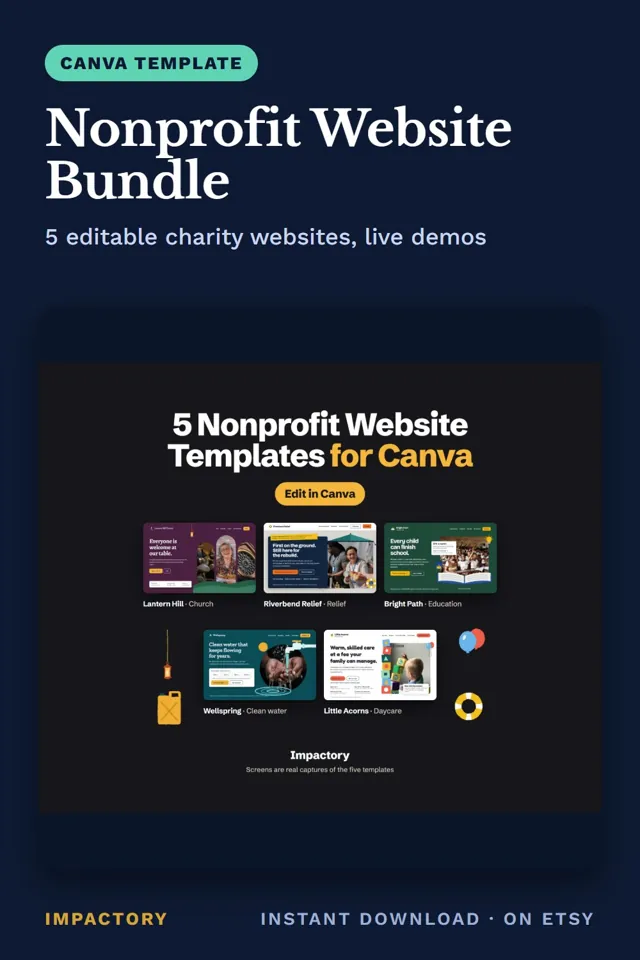
Nonprofit Website Bundle
Canva templateBefore a funder signs, someone on their side may open your website and ask a plain question: where does the money go, and who checks?
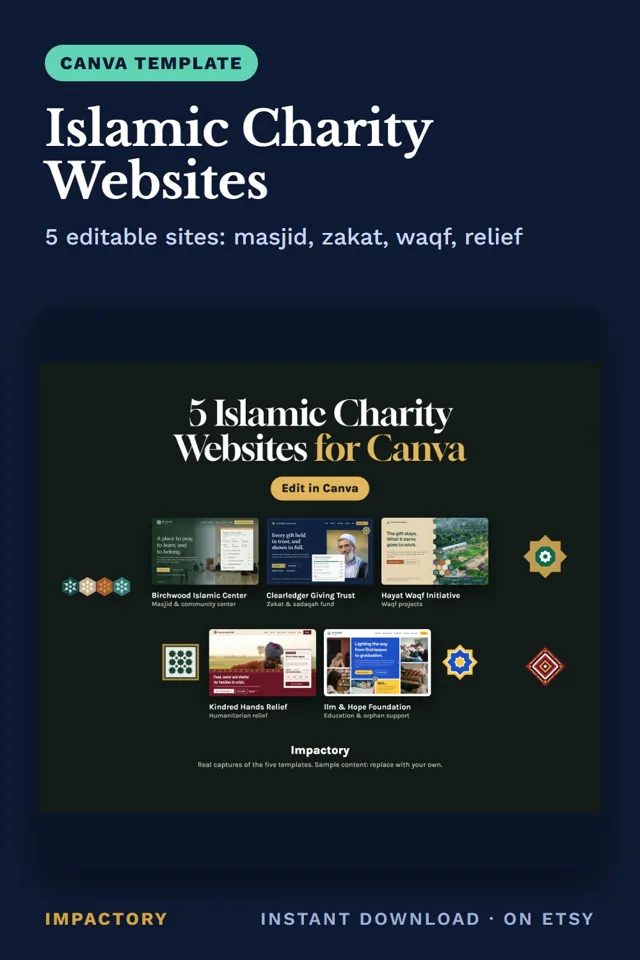
Islamic Charity Websites
Canva templateMany zakat donors want to see their zakat kept apart from general giving, and a single Donate button can't show them that.
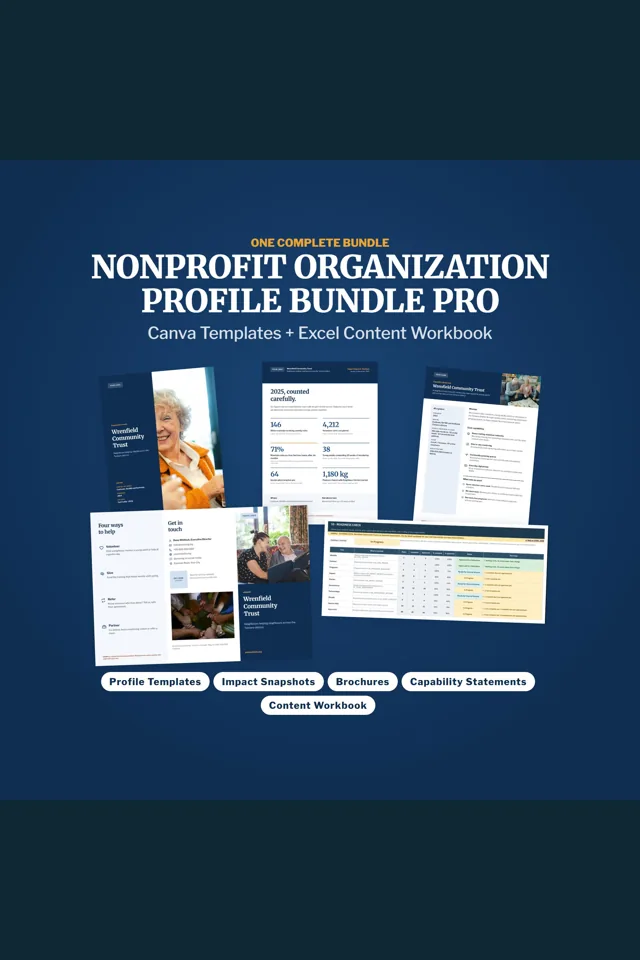
Organization Profile Bundle
Canva templatePartners, donors and sponsors each want a different document, and a single long profile rarely fits all three. A first email needs two pages; a board pack can take sixteen.